
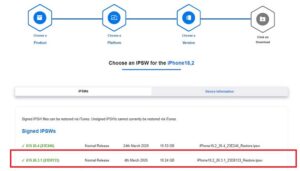
UPDATE: Below steps only works if previous ios version is still signed by Apple. Unfortunately, the ios version 26.3.1 is no longer signed by Apple which means apple does not allow you anymore to revert to previous ios version. Basically now you are stuck with the communist apple iphone. Sorry!
If you’re in the UK, DO NOT update your iPhone (or any iPad, Macs) to iOS 26.4.
Apple quietly slipped in a heavy-handed UK age verification system that forces you to prove you’re 18+ (credit card or driving licence scan) just to use your own device normally.
Fail to do it and your phone gets locked into “child mode” – web filters, blocked adult content, restricted messages and apps, the works.
Here’s the important part Apple doesn’t want you to know: The UK government and the Online Safety Act did actually NOT require Apple to implement this at the operating system level. They voluntarily chose to do it. Apple even wrote “UK law requires…” in the update prompt, but that’s total bullshit lie. The law applies to websites and apps with user-generated content – not to iOS itself or the App Store. Apple went above and beyond on their own because they love playing along with the nanny-state agenda like little communists.
If you’ve already updated, you can still downgrade back to iOS 26.3.1 – but you have to move fast. Apple usually stops signing older versions within couple of weeks. Right now (April 2026) 26.3.1 is still being signed, so downgrading works perfectly.
Simple step-by-step guide (20-40 minutes):
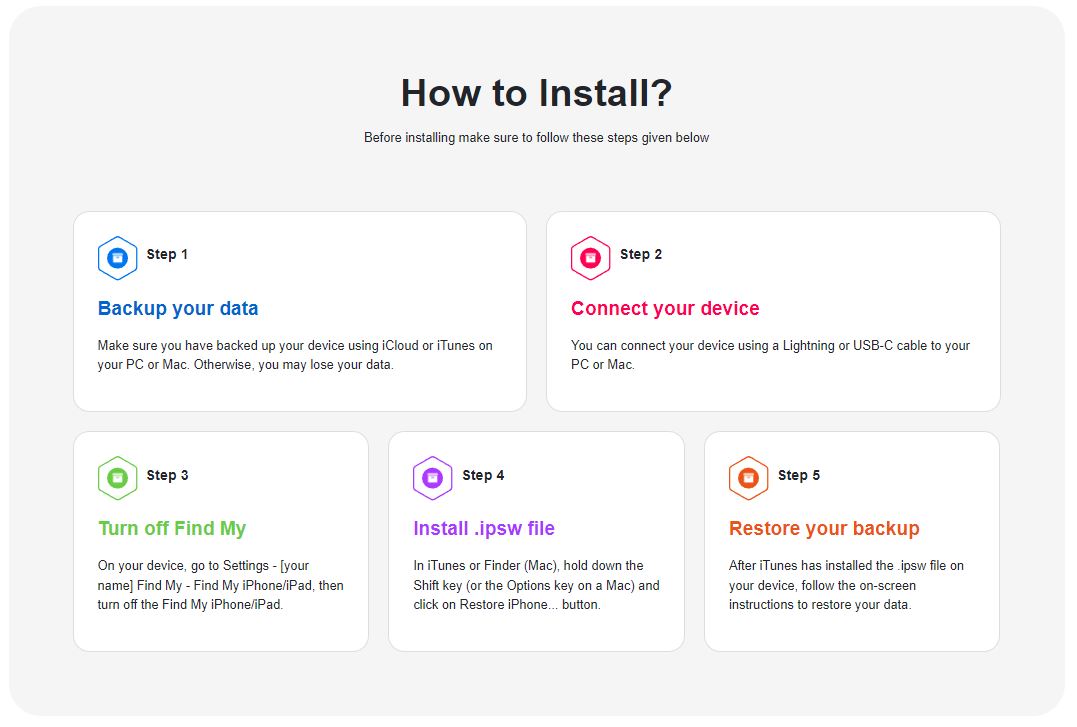
- Backup everything first, to icloud or locally on your computer (all your contacts, messages, photos/videos, notes, important apps).
- iCloud: Settings → [Your Name] → iCloud → iCloud Backup
- Or connect to a computer and back up via Finder (Mac) or the Apple Devices app / iTunes (Windows).
Save photos, messages, apps — everything. The downgrade will wipe your device.
- Turn off Find My
Settings → [Your Name] → Find My → Find My iPhone → OFF. - Download iOS 26.3.1 on your laptop/pc
Go to: https://ipsw.io/product/iPhone- a) Select your exact iPhone model.
- b) Download iOS 26.3.1 (the signed version).
- c) File is big (~10 GB) so use a good connection.
- Restore on your computer
- Windows: open iTunes (install it first, if not already installed)
- Mac: open Finder.
- Connect your iPhone with a cable.
- Put it into Recovery Mode – in iTunes hold Shift key (Windows) or Option key (Mac) and click Restore button (not Update).
- Select the 26.3.1 .ipsw file you which you downloaded earlier.
- Let it run – it erases and installs the older version.
- After it finishes, set up your phone and restore your backup. The ios version now should be back to 26.3.1 and age verification prompt disappears and no longer enforced.
- Ensure Automatic Updates are turned off in Settings > General > Software Updates (all three under Automatic updates needs turned off). Once in a while you will get notifications to update, always close or ignore these notifications.
Below is a guide from IPSW with steps to follow if you prefer visually:
Quick warnings:
- Only attempt this if you’re comfortable with basic tech steps.
- Ensure you backup everything important to you: contacts, messages, photos/videos, notes, important apps – you can backup in icloud or locally on laptop/pc.
- You’ll stop receiving new updates until you decide to update again.
- Do it soon – the signing window closes quickly.
- At your own risk, but thousands of UK users are doing exactly this right now.
Apple tried to sneak this in without proper warning and then lied about it being “required by law”. Don’t let them turn your phone into a government-approved surveillance toy. Share this with every UK iPhone owner who hates the overreach. Stay in control of your own device.
Any questions email me. I’ll help where I can.